Tools
Cc to schedule
The email agent helps you handle scheduling and follow-ups directly from your inbox.
It is a reactive feature, which means:
It does nothing in the background
It never intervenes on its own
It only acts when you ask it to
You involve the email agent by:
CC’ing Trickle on an email
Forwarding an email to Trickle
What the Cc agent does
You can ask Trickle to propose meeting times by CC’ing it on an email, both when starting a new email and when replying in an existing thread.
When you include Trickle in the Cc field, it reads the email context and replies-all with:
Inline, clickable time options in the email
A smart booking link that reflects your constraints
(date range, duration, location, participants)
Recipients can click a time or open the booking link to book instantly.
Step-by-step
Compose a new email or reply in an existing thread
Add the recipient(s) in To:
Add assistant@chat.trickle.ai in Cc:
Write naturally and include any preferences
Send the email
Trickle will reply-all with proposed times and a booking link with extra time slots.
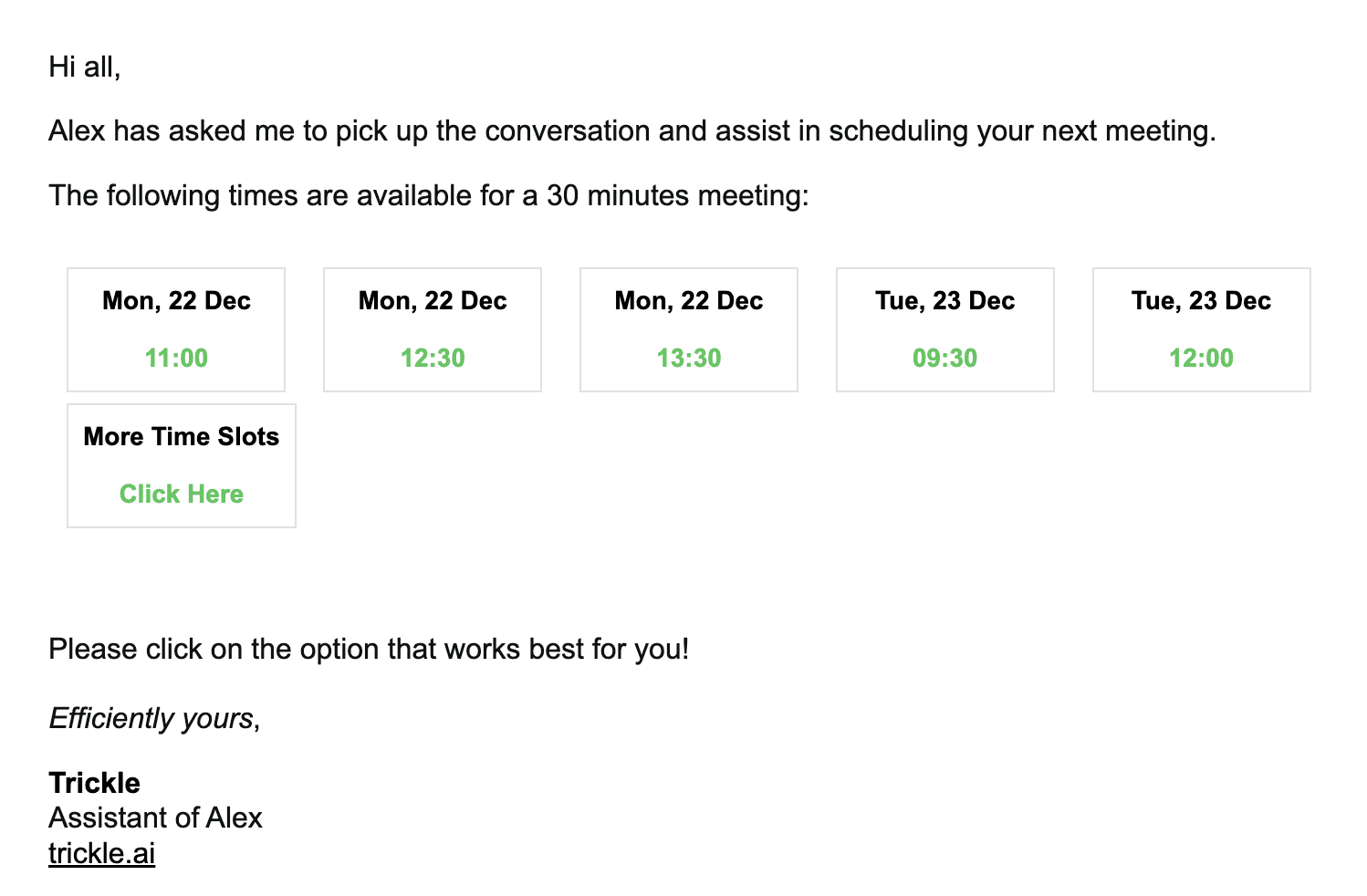
Clicking a button:
Books that slot immediately
Creates the calendar event
Sends the invite to all participants
The booking link:
Only shows valid options
Hides times that don’t match your constraints
Updates automatically if availability changes
Using context to control scheduling
You don’t need commands or syntax, plain language is enough. Trickle understands context from the initial meeting request, whether you are the sender or the receiver.
Duration
Examples:
“Would you be free for an hour?”
“Let’s keep it to 30 minutes”
“This should only take 45 min”
Time window
Examples:
“Next week”
“Two weeks from now”
“Sometime next month”
“In the first half of March”
Days or exclusions
Examples:
“I’m free on Tuesdays and Fridays”
“Any day except Wednesday”
“Prefer early in the week”
Time of day
Examples:
“Only during office hours”
“Mornings only”
“Could we do this over lunch?”
“Dinner might work better”
Location / format
Examples:
“Teams link”
“Zoom only”
“At our Brussels office”
“In person if possible”
Combined example
You write (CC Trickle):
Hi Barbara,
We should meet to discuss the launch of the event next month.
Tuesdays and Fridays work best for me, ideally in the afternoons.@Trickle can you suggest a few 45-minute options at our Brussels office?
Trickle replies-all with:
Afternoon slots on Tuesdays and Fridays
45-minute duration
Brussels office set as location
Inline booking buttons + booking link
Team scheduling (multiple Trickle users)
If other Trickle users are included in the email, Trickle will:
Cross-check everyone’s calendars
Only propose times when all required participants are available
Hide slots that don’t work for everyone
Example:
You and Nora use Trickle
Jeroen is external
Trickle proposes only overlapping availability for you + Nora
Requirements
For the CC Agent to propose and book times:
You need an active meeting link in your Trickle settings
Calendar availability must be enabled
If availability is disabled, Trickle may fall back to a booking link with limited options.
Join our Community Forum
Any other questions? Get in touch